
Faculty: Get Started
Getting Started in Echo360 for Faculty
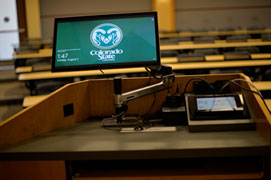
Echo360 recording equipment.
Lecture Recording Options
Echo360-Enabled Classroom Recording
- Check if your classes will be in one of the Echo360-Enabled Rooms.
- Create/Manage Echo360 Sections, Schedules and Recordings - Request sections and recordings for automatic lecture capture.
- On-Campus Recording Using Echo360-Enabled Rooms - Learn what equipment is in your classrooms and how to use it.
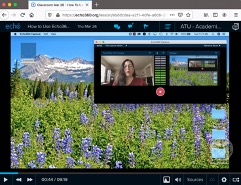
laptop or PC to record from anywhere.
Echo360 Universal Capture for Home/Office Recording
If your class is not scheduled in one of these rooms, or you will be teaching from your home or office, you can use Echo360 Universal Capture: Personal software on your laptop or PC to record your lectures, either live or in advance.
Upload Zoom Recordings
If you prefer to use Zoom instead, which can include your student interactions, you can upload your Zoom recording to your Echo360 library (which is automatic if you use a Zoom Pro account).
Upload Your Own Videos
If you have created videos in any other source, such as Microsoft Teams, or have recorded your own way, you can upload, store in Echo360, and distribute to your current and future classes.

Steps to Provide Access to Students
- Cross-list multiple Canvas sections of the same course so they can all view the same Echo360 section.
- Schedule your Echo360 sections for the upcoming term.
- Log in to your Echo360 account to view your Echo360 library and your courses and sections.
- Add your Echo360 section to your Canvas course, where students can access it.
- Add Echo360 library videos to your course section
- Create Echo360 links to insert into your Canvas course
- Create Echo360 embed codes to insert into your Canvas course